Quick Note: If you searched for 1571# hoping to fix your Starlink, that is actually an MTN USSD code and will not help with Starlink issues. Starlink troubleshooting is done exclusively through the Starlink app or website. This guide covers the real solutions to get your internet working again.
The first time I saw “Obstructed” flash across my Starlink app in my Surulere flat, I panicked. I had just spent over ₦350,000 on the Standard kit, waited three weeks for delivery, and now my Gen 2 dish was cutting out every few minutes. Sound familiar?
After three frustrating days testing my kit across four different spots on my flat concrete roof, including one failed attempt near my 1,000-litre Polytank, I finally cracked it. My wife was not impressed when I drilled the fourth mounting hole, but the result? My Starlink now runs at 99.8% uptime with speeds consistently above 120 Mbps. I want to share everything I learned so you can skip the wahala I went through.
If you are dealing with the Starlink obstruction error in Nigeria, this guide covers exactly what causes it, how to fix it step by step, and the best placement strategies for Nigerian homes. Whether you live in Lagos, Abuja, Port Harcourt, or anywhere else in the country, these solutions will work for you.
What Does Starlink Obstruction Error Mean in Nigeria?
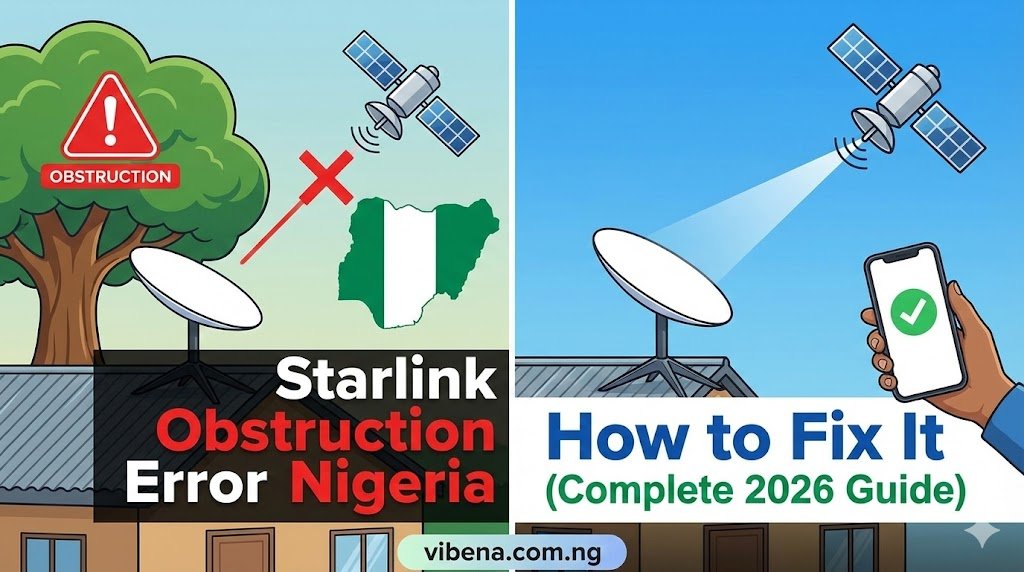
When your Starlink app displays an obstruction error, it means something is blocking the dish’s view of the sky. This prevents it from maintaining a stable connection with the Low Earth Orbit (LEO) satellites passing overhead.
Here is the thing most people do not understand about how Starlink works. Unlike your DSTV dish that points at one fixed geostationary satellite, Starlink’s phased array antenna needs a clear 100-degree field of view to communicate with multiple satellites as they move across the sky. According to the official Starlink Help Center, objects such as tree branches, poles, or roofs that obstruct this connection may cause service interruptions.
Think of it like trying to have a conversation with someone while people keep walking between you. Every time something blocks that line of sight, your connection drops and you experience latency spikes or packet loss.
The good news? Starlink is designed to handle some obstructions. The system automatically switches between satellites many times per minute to route around obstacles. For reactive switching around moving obstructions like tree branches swaying in the wind, the system responds in 10s to 100s of milliseconds. For well-placed dishes, even with partial obstructions, uptime typically stays above 99.9 percent.
In my experience with my Gen 2 kit in Lagos, the obstruction error usually shows up for one of two reasons: either the dish is genuinely blocked by something, or the system is still learning your environment. According to Starlink’s support documentation, the dish can detect most obstructions in less than a day, so give it time before making major changes.
Why Starlink Obstruction Error Occurs in Nigeria: Common Causes
Understanding what causes the obstruction error helps you diagnose and troubleshoot it faster. Here are the most common culprits I have encountered, both from my own setup and from talking with other Starlink users across Nigeria in forums like Nairaland.
Trees and Building Shadows
This is the number one cause of obstruction errors in Nigeria. Many of us have mango trees, palm trees, or neighboring buildings that cast shadows across our roofs. Even a single branch swaying in the wind can cause intermittent disconnections and affect your signal-to-noise ratio.
What makes this tricky is that obstructions do not need to be directly above your dish. Because Starlink communicates with satellites across a wide arc of sky using Ku-band frequencies, a tree that seems far away can still block signals when the dish tries to connect with satellites near the horizon.
When I first installed my dish, I placed it on what I thought was the clearest part of my roof in Surulere. But I did not account for my neighbor’s water tank, which blocked about 15 degrees of sky view. It took me two days to figure out that was causing my evening dropouts, with speeds dropping from 150 Mbps to around 60 Mbps during peak hours.
Incorrect Dish Placement
Based on discussions in the Nairaland Starlink forum, many Nigerians install Starlink the same way they would install DSTV, tucking it against a wall or under an overhang for protection. This approach does not work for Starlink at all.
The dish needs to see the entire sky, not just a portion of it. Placing it too close to walls, under eaves, or in corners of your compound significantly reduces its field of view and triggers obstruction errors. Your Starlink, whether you have the Gen 2, Gen 3, or Starlink Mini, needs open sky access.
Material Build-Up on the Dish During Harmattan
During harmattan season, dust accumulation becomes a real problem that affects downlink performance. I noticed my connection quality dropped noticeably in December and January until I started cleaning my dish weekly. The fine harmattan dust can coat the dish surface and interfere with signal reception on the phased array antenna.
Bird droppings, leaves, and debris from nearby trees can also accumulate. Unlike traditional satellite dishes that can tolerate some dirt, Starlink’s antenna technology is more sensitive to surface contamination.
The Dish Has Shifted or Fallen
If you suddenly start getting obstruction alerts after months of working fine, check if your dish has physically moved. Strong winds during rainy season can shift poorly mounted dishes. The dish needs secure mounting to prevent this.
I know someone in Lekki whose dish fell over during a storm. It landed face-up and technically still worked, but the obstruction errors were constant because it was now looking at his fence instead of the sky. The thing no work at all until he remounted it properly.
How to Fix Starlink Obstruction Error in Nigeria: Step by Step
Let me walk you through the exact process I used to eliminate my obstruction issues. Follow these steps in order for the best results.
Step 1: Use the Starlink Obstruction App Tool
Before you start moving anything, open your Starlink app and run the obstruction check. This tool uses your phone’s camera to scan the sky and show you exactly what is blocking your dish’s view.
Here is how to do it according to the Starlink Help Center:
- Open the Starlink app on your phone (available on iOS and Android)
- Tap on the menu and select “Check for Obstructions”
- Hold your phone at the location where your dish is installed, or where you plan to install it
- Follow the guided experience to slowly pan around
- The app will highlight problem areas in red
This tool saved me hours of guesswork. It clearly showed that a section of my roof parapet was blocking about 10 degrees of sky view to the north. Once I moved the dish just two meters to the left, the red zones disappeared.
Step 2: Check Your Starlink Obstructions Map
After your Starlink has been running for at least 12 hours, it generates a detailed obstruction map based on actual connection data. According to Starlink’s official documentation, it can take up to 12 hours to generate a complete obstruction map. This map differs from the camera tool because it shows real-world blockages the dish has encountered while communicating with satellites.
To view it:
- Open the Starlink app
- Go to the home screen
- Tap “Obstructions” or “View Obstruction Map”
The map displays a circular view of the sky with your dish at the center. Red areas indicate where obstructions are blocking satellites. The clearer the map, the better your connection will be.
One thing that confused me initially: there is a thick clear band across the middle of the map. This is the geostationary exclusion zone, and it is completely normal. That area of sky is where traditional geostationary satellites operate, and Starlink deliberately avoids it to prevent interference. Do not mistake this for an obstruction problem.
Step 3: Relocate Your Dish to a Better Spot
If the obstruction map shows significant red areas, you need to move your dish. Based on my experience and what I have learned from other users, here are your best options:
Roof peak or highest point: Getting the dish as high as possible gives it the clearest view. In Nigerian compounds, this usually means the very top of your building. Mounting your dish at least 3 meters above your highest fence line typically eliminates most ground-level obstructions.
Away from water tanks: Many of us have overhead Polytanks or concrete water tanks. These are common obstruction sources. Position your dish on the opposite side of the roof from your tank.
Clear of trees: If you have trees in your compound, the dish needs to be far enough away that branches do not enter its field of view. Remember, you need 100 degrees of clear sky, so even trees 10 meters away can be problematic.
Away from neighboring buildings: In densely built areas of Lagos like Victoria Island, Ikoyi, Lekki, Ajah, and Surulere, or Abuja areas like Wuse, Garki, and Maitama, multi-story buildings nearby can block significant portions of sky.
When I finally found my optimal spot, it was not where I originally expected. I had to experiment with three different locations over two days before finding the sweet spot. The effort was worth it because my connection has been rock solid ever since.
Step 4: Reboot Your Starlink System
After relocating your dish, always perform a full reboot:
- Unplug the power cable from the router
- Wait for at least 30 seconds (I usually wait a full minute to be safe)
- Plug it back in
- Wait 15 to 30 minutes for the system to fully restart and acquire satellites
This refresh helps the dish re-establish connections and start building a new obstruction map for its new location. In my experience and based on reports from Nigerian users on Nairaland, this simple reboot resolves a surprising number of problems that initially seem complicated.
Step 5: Reset Your Starlink Obstruction Map If Needed
If you have moved your dish to a new location, you may want to clear the old obstruction data so the system can start fresh. The Starlink app now saves obstruction data even when the dish reboots, which is helpful for stable setups but can cause confusion when you relocate.
To reset:
- Open the Starlink app
- Navigate to the obstruction page
- Look for the “Reset Obstruction Map” button
- Tap to clear the data
After resetting, give the system at least 12 hours to rebuild the map. During this time, you might see more frequent alerts as Starlink learns about obstructions in the new location. This is normal and should stabilize within a day or two.
Starlink Check for Obstructions Not Working: App Troubleshooting
Sometimes the obstruction checking tool in the Starlink app does not work properly. This is frustrating when you are trying to diagnose issues. Here is what to do:
Force close and restart the app: On Android, go to Settings, then Apps, find Starlink, and tap Force Stop. On iPhone, swipe up from the bottom and swipe the app away. Then reopen it.
Clear app cache: On Android devices, go to Settings, Apps, Starlink, Storage, and tap Clear Cache. This often resolves glitches without losing your settings.
Check location permissions: The obstruction tool needs access to your phone’s camera and location. Go to your phone settings and ensure the Starlink app has permission for both.
Update the app: Make sure you are running the latest version from the Play Store or App Store. SpaceX regularly releases updates that fix bugs.
Reinstall the app: If nothing else works, delete the app completely and reinstall it. You will need to log back into your Starlink account.
Try a different phone: I’m not 100% certain why, but some older phones struggle with the AR-based obstruction checker. If you have access to a newer device, try using that instead.
If the “Check for Obstructions” tool still is not working after these steps, you can still use the automatically generated obstruction map (which requires the dish to be operational for 12+ hours) to diagnose issues.
Starlink Obstruction Chart: Understanding Severity Levels
One question I get frequently is “how much obstruction is too much?” Here is a breakdown based on my testing and reports from other Nigerian users:
| Obstruction Level | Map Appearance | Expected Impact | Recommended Action |
|---|---|---|---|
| None (0%) | Completely clear | 99.9%+ uptime, full speeds | No action needed |
| Minor (1-5%) | Small red patches at edges | Rare brief drops, minimal impact | Monitor only |
| Moderate (5-15%) | Visible red sections | Occasional 2-5 second interruptions | Consider relocating if issues persist |
| Severe (15-30%) | Large red areas | Frequent dropouts, video calls affected | Must relocate dish |
| Critical (30%+) | Most of map shows red | Unusable for most applications | Immediate relocation required |
With my initial placement showing about 15% obstruction, my speeds dropped from 150 Mbps to around 80 Mbps during peak evening hours, and Zoom calls would freeze for 3-5 seconds every 2-3 minutes, making client meetings embarrassing. After optimizing placement to under 3% obstruction, I consistently get 120-180 Mbps with stable video calls.
For those who work remotely and cannot afford dropouts, check out our guide on remote work in Nigeria essential gadgets for tools that can help you stay productive even with occasional connectivity issues.
How to Do a Starlink Obstruction Test Before Installation
If you have not yet set up your Starlink or you are planning to move it, running an obstruction test first saves you a lot of trouble. I wish I had done this more thoroughly before my initial installation.
Here is my recommended process:
Download the app first: You can download the Starlink app even before your kit arrives. The obstruction checking tool works without an active Starlink subscription, which is helpful for assessing your property.
Test multiple locations: Do not just check one spot. Walk around your entire roof or compound and run the obstruction check at every potential mounting location. Take screenshots of each result for comparison.
Check at different times: I learned this the hard way. A spot that looks clear in the morning might have issues in the evening when the sun is in a different position and shadows fall differently. If possible, check your preferred spots at multiple times during the day.
Look for 100 degrees of clear sky: The app will tell you the expected experience based on obstructions. Aim for locations that show “Great” or at minimum “Good” ratings.
Consider seasonal changes: Trees that are sparse during dry season may fill out during rainy season. Account for this when choosing your location.
Factor in cable length: The standard Starlink cable is 15 meters. If your ideal spot is farther from where you want the router, you can purchase extended cables at 23 meters or 46 meters, but these cost extra.
If you are serious about getting the best performance, consider our complete guide on the Starlink activation process for a full walkthrough of getting started with your kit.
Best Roof Placement to Avoid Starlink Obstruction in Nigeria
Getting the placement right from the start saves you weeks of frustration. Here is what works best for typical Nigerian homes.
Ideal Roof Positions for Nigerian Homes
Flat concrete roofs: If you have a flat roof, the center or highest point usually offers the best sky view. Avoid corners where parapets block the horizon. Most Lagos and Abuja homes have this roof type, which is actually ideal for Starlink installation.
Pitched roofs with corrugated sheets: Mount the dish on a pole that extends above the roof peak. The dish needs to clear the roofline entirely. Make sure your mounting pole is sturdy enough to handle harmattan winds.
Multi-story buildings: Higher is almost always better. If you have a three-story house, the top floor roof will give you much better results than a first-floor balcony or ground-level compound placement.
Compounds with boys’ quarters (BQ): Sometimes the BQ roof is actually better positioned than the main house, especially if the main building has trees nearby or the BQ is taller.
Common Starlink Placement Mistakes in Nigeria
Mounting too low: A dish at ground level in a typical Nigerian compound will have terrible sky view. Fences, walls, and buildings will block most of the required 100-degree sky view.
Hiding the dish for aesthetics: I understand wanting to keep your compound looking clean, but tucking the dish behind a parapet or under an awning defeats its purpose entirely.
Ignoring the water tank: Nearly every Nigerian home has an overhead water tank. These are significant obstructions that many people overlook during installation.
Forgetting about generator exhaust: If your generator room is on the roof, consider whether the exhaust or structure might interfere. Some users have reported issues with heat shimmer from generators affecting their signal during extended NEPA outages when the gen is running for hours.
Urban Challenges in Lagos and Abuja
City living presents unique challenges for Starlink users. In areas like Victoria Island, Ikoyi, Lekki, Ajah, Magodo, and parts of Abuja like Wuse II, Maitama, and Garki, tall buildings and dense construction make finding clear sky views difficult.
I have spoken with users in these areas who found creative solutions:
Negotiating with neighbors: One user in Victoria Island got permission to mount their dish on a neighbor’s taller building in exchange for sharing the connection.
Using longer cables: Starlink sells extended cables that let you mount the dish farther from your router. This opens up mounting options that would otherwise be impractical.
Rooftop communal mounting: In some apartment buildings, residents have coordinated to find the best rooftop location that works for everyone.
If you are comparing your connectivity options, our detailed comparison of Starlink vs fiber in Nigeria can help you decide if Starlink is right for your specific situation.
Starlink Not Working in Nigeria: Other Causes Beyond Obstructions
If you have addressed obstructions but still have problems, several other issues might be at play. Here is what else to check.
NIN Biometric Verification Requirement
This is crucial and catches many users off guard. The Nigerian Communications Commission (NCC) now requires all Starlink subscribers to complete biometric verification linked to their National Identification Number (NIN). If you have not completed this process, your service may be suspended.
Over 66,000 Starlink subscribers in Nigeria were required to complete this verification as reported by multiple Nigerian tech publications in late 2025. The process involves uploading a headshot, providing your NIN, and consenting to link the information to your Starlink account through the NIMC database. The verification takes less than two minutes.
If your account shows as suspended or restricted, check your email for verification instructions from Starlink and complete the process through your account settings immediately.
Starlink Not Working in Lagos: Capacity Issues
Here is something many people do not realize: Starlink has capacity limits in certain areas. In Lagos, districts like Victoria Island, Ikoyi, Lekki, Surulere, Lagos Island, Ikeja, and Ajah frequently show as “sold out” or “waitlist” on Starlink’s availability checker. Abuja faces similar limitations in Wuse, Garki, Maitama, and Asokoro.
If you are a new user trying to activate service in a sold-out area, you may be placed on a waitlist. According to the official Starlink Help Center, new Residential orders in Nigeria are currently on hold while SpaceX works with regulators on adjustments to improve the customer experience.
This is one reason why staying compliant with NCC requirements matters so much. If your service gets suspended in a capacity-constrained area, you might face significant delays getting back online.
Starlink Payment Issues in Nigeria
Payment problems can also cause service interruptions that may appear similar to technical issues. Common causes include:
Expired or declined cards: International card payments sometimes fail. Ensure your Naira card has international transactions enabled and sufficient balance.
Dollar exchange rate changes: The cost in Naira fluctuates with exchange rates. Make sure your card can cover the current converted amount.
Payment method updates: If your card expired, you need to update it in your Starlink account before the next billing cycle.
Check your Starlink account to ensure your payment method is valid and your subscription is active.
Hardware and Cable Problems
The Starlink app can detect physical issues with your equipment. Look for these alerts:
“Poor Cable Connection”: This means there is a problem with the cable connecting your dish to the router. Power everything down, inspect both ends of the cable for damage, ensure they are clean and fully clicked into place, and check the entire cable run for nicks or sharp bends. Protect cables run through walls with conduit.
“Offline – Booting”: Your system is starting up. This can take up to 30 minutes after a power cycle. If it stays stuck on this status, try a reboot.
“Offline – Searching”: The dish is hunting for satellites. This can indicate a new obstruction or that the dish has shifted position. Re-check for obstructions and verify its alignment.
“Offline – Unexpected Location”: This specifically indicates that your dish is operating outside its registered service address. If you have moved, update your service address in your account settings.
If you frequently lose power when NEPA takes light, you might benefit from a proper backup power setup. Our guide on solar inverter setup for Nigerian 2-bedroom flats covers how to keep your Starlink running during outages without relying solely on your generator.
Is Starlink Restricted in Nigeria?
Let me clear up some confusion I see online about this topic.
Starlink is not restricted in Nigeria in the sense of being banned or illegal. SpaceX received approval from the Nigerian Communications Commission to operate in Nigeria, and the service has been available since 2023. Nigeria is actually Starlink’s largest market in Africa with over 66,000 active subscribers.
However, there are regulatory requirements that users must follow:
NIN Verification: All subscribers must link their accounts to a verified National Identification Number. This aligns with the NCC’s broader NIN-SIM linkage program that applies to all telecommunications services in Nigeria, including MTN, Glo, Airtel, and other providers.
Service Address Registration: Your Starlink must be used at your registered service address. Using it elsewhere may trigger an “Unexpected Location” error.
Import Duties: Starlink equipment imported into Nigeria is subject to customs duties. Some users have reported issues with kits stuck in customs.
Understanding the “Starlink Restricted” Error Message
If you see “Starlink Restricted” or “Restricted” in your app, this typically indicates an account-level issue rather than a government restriction on the service. Common causes include:
- Incomplete NIN verification
- Unpaid invoices or payment failures
- Terms of service violations
- Using the dish far outside your registered service area
Actually, that last point needs clarification. Starlink does allow some portability depending on your plan, but using it in a completely different region than your registered address without updating your account can trigger restrictions.
For those weighing alternatives, our comparison of Amazon Kuiper vs Starlink in Nigeria looks at what competition might bring to the Nigerian satellite internet market in the coming years.
Starlink Obstruction Error Nigeria Today: Current Issues (2026)
As of January 2026, there are some developments affecting Starlink users in Nigeria that you should know about:
New Order Restrictions: According to the official Starlink website, SpaceX is working closely with Nigerian regulators to make adjustments that will improve the customer experience. Until these changes are approved, new Residential orders are currently on hold. If you want to join, you can place a deposit to reserve your spot on the waitlist.
Continued Capacity Constraints: Major Nigerian cities, particularly Lagos and Abuja, continue to experience capacity limitations. New subscribers in affected areas may face extended wait times.
NIN Verification Enforcement: The NCC has been enforcing compliance more strictly. If you have not completed verification, prioritize this to avoid service suspension.
Harmattan Season Considerations: During the current harmattan season, dust accumulation on dishes is more common. Consider cleaning your dish weekly to maintain optimal signal reception and configure your inverter backup to handle the dry season’s power fluctuations.
If power outages are affecting your ability to stay connected during outages, check out our tips on how to stay focused during power outages for practical strategies.
When to Contact Starlink Support: How and Where to Reach Them
If you have tried everything in this guide and still cannot resolve your obstruction error, it is time to contact support. Here is exactly how and where to reach Starlink customer service in Nigeria.
Contact Methods for Nigerian Customers
According to the official Starlink Support page, Nigerian customers have several ways to get help:
Phone Support (Nigeria): Call +234 800 123 5240. This is the dedicated Nigerian support line. The Starlink support team is staffed 24/7 in multiple languages to help with your issues.
Through the Starlink App (Recommended):
- Open your Starlink app
- Go to the Support section
- Start a chat with the AI assistant to describe your issue
- You can escalate to a live agent if the AI cannot resolve your problem
- Support will reply via message or call the phone number on your account
Through the Starlink Website:
- Visit starlink.com/support
- Sign in to your account
- Navigate to the support section and submit a ticket
- Describe your issue in detail
Guest Support (If you cannot access your account): If you are locked out of your account or having trouble placing an order, you can submit a guest support ticket through the Starlink Help Center without logging in.
For Complaints and Formal Claims: Send an email to [email protected] with “Consumer Complaint” and your Starlink account number in the subject line.
For Privacy Inquiries: Contact [email protected]
Local Office Information
Starlink has a registered office in Nigeria located at:
- 5th Floor, Wings Office Complex (partial address from official sources)
Important Note: According to Starlink’s official documentation, registered offices listed online and on invoices are not staffed by customer support representatives and do not handle customer support inquiries, including deliveries or returns. All support should go through the app, website, or phone number listed above.
What Information to Provide When Contacting Support
Before reaching out, gather this information to speed up resolution:
Describe the problem clearly: When did it start? What error messages do you see? Is it constant or intermittent? Be specific about timeframes.
List your troubleshooting steps: Tell them what you have already tried. This prevents them from suggesting things you have already done.
Include photos: Take clear pictures of your dish installation, its view of the sky, and your cable routing. Screenshots of your obstruction map are extremely helpful.
Note your location: Mention your city and specific neighborhood (e.g., “Lekki Phase 1” not just “Lagos”). This helps them understand any regional issues or capacity constraints.
Specify your hardware: Mention whether you have a Gen 2, Gen 3, or Starlink Mini kit.
Expected Response Times
The Starlink support team operates 24/7. According to their official documentation, they will reply either via message or by calling the phone number on your account as soon as possible. In my experience and based on reports from other Nigerian users, response times vary from a few hours to several days depending on issue complexity. Be patient but persistent. If you do not get a response within a week, submit a follow-up ticket referencing your original request.
Starlink Gen 2 vs Gen 3 vs Mini: Obstruction Handling Differences
Different Starlink models have slightly different setup requirements that affect how you deal with obstructions:
Standard Actuated (Gen 2) Kits: These are plug-and-play. The dish automatically levels and aligns itself using built-in motors. Do not manually adjust the dish position after it has oriented itself. If you move the dish to a new location, it will realign automatically.
Standard (Gen 3/V4) Kits: These newer models require manual alignment using the Starlink app. You will need to physically point the dish in the correct direction based on app guidance. This gives you more control but requires more effort during installation.
Starlink Mini: The portable Mini also requires manual alignment. It is designed for travel and temporary setups, making it ideal for Nigerians who move between locations frequently.
For detailed performance data on the Mini in Nigerian conditions, see our Starlink Mini Nigeria latency test and real performance benchmarks.
Frequently Asked Questions
How long does Starlink take to check for obstructions?
The camera-based obstruction tool in the app gives you results immediately as you scan. However, the automated obstruction map that the dish generates based on actual connections takes up to 12 hours to fully populate according to Starlink’s official documentation. During this period, you might see more alerts than normal as the system learns your environment. Starlink can detect most obstructions in less than a day.
Can Starlink work with trees nearby?
Yes, but it depends on the extent of the obstruction and tree density. Starlink can tolerate partial obstructions and still maintain high uptime. Small gaps in tree coverage may not cause noticeable issues because the system can switch satellites in 10s to 100s of milliseconds to work around brief blockages. However, dense tree coverage directly in the dish’s field of view will cause problems that require relocating the dish or trimming the trees.
What is the geostationary exclusion zone on my obstruction map?
This is the thick clear band you see across the middle of your obstruction map. It is not an obstruction and you should not worry about it. Geostationary satellites from other operators like traditional TV satellites occupy this region of sky, and Starlink deliberately avoids communicating in this zone to prevent interference. It appears on every user’s map regardless of location.
Why does my obstruction error come and go throughout the day?
This usually indicates partial or intermittent obstructions. Common causes include tree branches moving in the wind, shadows shifting as the sun moves across the sky, or birds temporarily perching on or near the dish. The system may handle the obstruction well most of the time but struggle during certain periods when satellites are in blocked portions of sky.
Will trimming trees fix my Starlink obstruction issues?
Possibly, but verify first. If trees are the primary cause of your obstructions, trimming them can definitely help. However, before cutting anything, use the Starlink app’s obstruction check tool to confirm that trees are actually the problem and to see exactly which branches need attention. Sometimes moving the dish is easier and cheaper than trimming trees, especially if the trees belong to a neighbor or are protected species.
Does rain affect Starlink in Nigeria?
Yes, heavy rain can temporarily affect your signal. This is called “rain fade” and happens with all satellite internet services using Ku-band frequencies. Starlink has a built-in snow melt feature that you can enable in the app, which also helps during heavy rain by keeping the dish surface clear. Normal rain typically does not cause significant issues, but torrential downpours during rainy season may cause brief interruptions lasting a few seconds to a few minutes.
How does Starlink compare to fiber or mobile data in Nigeria?
Starlink offers faster speeds than most Nigerian ISPs, typically 50-200 Mbps download, but fiber where available can offer comparable or better speeds with lower latency. Mobile data from MTN, Airtel, and Glo is more affordable but significantly slower and less reliable for heavy use. The main advantage of Starlink is availability in areas where fiber infrastructure does not exist.
Final Thoughts
Dealing with Starlink obstruction errors in Nigeria can be frustrating, but most issues are fixable with the right approach. Start with the app’s obstruction tools, find the best possible location for your dish, and give the system time to learn your environment.
Remember that Starlink is designed to handle some obstructions through its advanced beam switching technology. You do not need a perfectly clear sky to get good performance. But the closer you can get to that 100-degree clear view, the better and more consistent your experience will be.
If you are still setting up your system, take the time to test multiple locations before committing to a permanent mount. The extra effort upfront will save you weeks of troubleshooting later. And make absolutely sure your NIN verification is complete to avoid any account issues that could suspend your service.
For those in heavily obstructed urban areas where Starlink might not be practical, consider exploring other connectivity options. Some users successfully combine Starlink with mobile data backup to ensure they stay online during any dropouts.

Oladepo Babatunde (Prince Babatee Tunde) is a Computer Scientist, researcher, and professional content writer with a Higher National Diploma in Computer Science from Kwara State Polytechnic, Nigeria.
With a background in technology and a passion for clear communication, Babatunde specializes in creating thoroughly researched, reader-focused content on productivity, personal development, home living, and technology. Every article he writes is backed by extensive research and fact-checking to ensure readers receive accurate, actionable information.
As a freelance writer, he has helped brands and publications deliver content that educates, engages, and empowers their audiences. His mission at Vibena is simple: make complex topics easy to understand and help Nigerians live smarter, more productive lives.